Bid Central 10.2 Rev 22 Information Download Update
I have some exciting news! A completely automated capability for getting possible commuter flights based upon the trips on your FC is on the way.
It's already been thoroughly tested and was honestly a bitch to develop, but he results are worth it. With a single button click, BC will analyze
the trips on your FC and get all flights for all routes for both the day of and day before your trip departure date, and the day of and day after your
trip return date for all commuter routes you've set up. Log-in to Deltanet will be automatic. The only thing you will need to do is respond to the
two factor authentication request. Bid Central will securely and privately store your login credentials and enter them automatically.
Once all the trips are loaded, you can select the commuter flights you want by right-clicking over any day block on a trip and selecting
.
This is a tremendous new automation function and the powerful underlying technology opens the door to further automation in other areas,
like one-button click to automatically download the pairings.zip file for the selected bid month and then process pairings. But the absolutely
huge cahuna is completely and reliably automating bid script entry into NavBlue. I also plan to add a button to download the previous
months flown pairings into the pilot flight logbook processor and process those pairings into your log book. The other big potential feature
is automatic jumpseat booking (at the earliest time) if I can use AI to defeat the "ID the object" screen prior to booking. I think all of these new features bring
a vibrant new life to Bid Central. I plan to release the already tested commuter flight feature next week- assuming I can get the update installation working seamlessly
on both Win10 and Win11. Because I'm retired I would appreciate anyone granting me temporary DNet access so I can get these features
working faster, and make your lives easier, less stressful, more organized, and less error prone! After this fabulous new feature is released,
I'll do a complete demonstration video, but using it will require clicking only a single button!!
and BC will do
the rest of the the rest of the work for you!
Rev 22: This revision adds a new arrow button
to the "Copy Flights from Travelnet" screen. If you click on the button it will select the next
route in the route direction you have selected, if there is more than one route. If you are on the last route and you click it, it will go to the first route. If there is only
one route, clicking will do nothing.
Right-clicking on the button will select the opposite commute direction (either to work or to home). The direction of the arrow will then change to reflect the selected
commuter flight(s) direction.
This revision also fixes an error condition that would occur if you closed the "Commute Route & Flight Setup" form before closing the "Copy Flights from Travelnet"
form.
This button:
is not yet working. I'm trying to implement technology that will allow it to work seamlessly with Travelnet.
Rev 21: I didn't properly test the feature for setting Windows alerts in the MCFL. It now generates error-free Windows alerts for JS Booking, and will automatically
delete expired alert scripts more than 60 days older than their creation date.
Rev 20: Fixes a pesky error where you would get an error just after the FC displayed when starting BC when there were no processed trips in the startup bid month.
Rev 19: Minor functional and cosmetic improvements in the commuter flights domain of BC.
Rev 18: Fixes a bug in Rev 17 where if you were manually entering a commuter flight and used the pop-up calendar (accessed by right-clicking on that field)
to select the date, you would get an error when you tried to save the flight. It now works as it should.
Rev 17: Here are the changes in this update:
- Changes the Commuter Flight form so there are two separate buttons for adding new flights:
If you have the Flight Entry Form (FEF) open
and you click [Add Travelnet Flights Directly], BC will know to add those flights directly even though the FEF is open.
- Adds Flight date to Manual Commuter Flight Add form:
in both one and two-leg commute flights.
- Improves the interface and field sequencing when adding manual commuter flights. You can now enter the times directly. Right-clicking over the time box activates the time-entry tool.
- Right-clicking over the Flight Date field will bring up the Calendar to select the date if you don't want to enter it directly.
- Updates the aircraft types available when selecting different airlines. Airline choices have been updated. If a new airline is added, all aircraft will be available for selection.
- Briefly shows "Saved.." once a flight is saved.
- Notifies when the flight you are trying to save is a duplicate of one already in the Flights list.
Rev 16: This update takes a slight turn in the commuter flight world. It will give you more options for adding commuter flights. We all know that airline flight schedules
are constantly changing. So a flight that operates on March 15 might not operate on April 3, or the flight number could be different. That means loading just a single set of
commuter flights that you select for a given day might not work on other days you might need to commute. To solve this problem, BC will now link the flight date with all
commuter flights you load into BC. You load all the flights for all of the days you might want to commute and BC will select flights date specifically instead of "assuming"
that the flight you want operates on the day you need it to operate. Just load all of the flights you want using the same method as before and BC will select the correct flights
for your commutes. If you believe you need only load one set of flights for each commute route, that is fine as well.
On the commuter flights selection screen, just check
the Ignore Specific Flight Dates.... check box and commuter flight selection will work
as before and filter flights based upon the operating days you have selected for a given flight in your commuter flight list as described in Rev 15.
If you do load flights for different dates and you check
on the commuter flights setup screen, then any flight past its flight date will automatically
be deleted when you open that form. Don't check this box if you are using the original method for selecting commuter flights unless you no longer want those flights.
Because of this new capability, I recommend you delete all previous commuter flights and reload all those that you need based upon the dates you commute. The previously
loaded commuter flights don't have the specific flight date information and won't work with the new date specific selection methodology.
The Other big change: You can now go directly to the Travelnet Flight Processing form from the Commuter Flight Setup Form and then capture your copied Travelnet flights
and process them directly without needing the Flight Data Entry/Edit form as an intermediary.
Just make sure the "Directly from Travelnet"
is checked and the "Copy Flights from Travelnet" form will open directly for you to copy and process TN flights. This form will also stay open after processing
so you can easily process additional flights.
I will release a new video demonstrating all of this later this week....
Rev 15: This update adds something that I forgot to add earlier. It's the ability to select the operating days-of-week for your possible commuter flights.
The operating days start with Monday and end with Sunday. So for a flight that operates everyday but Thursday, the op days would be '1110111'. Here it is on
the commuter flights setup screen:
In this case I've changed Thursday and Sunday to '0' (i.e. no op)
for flight 1210. Now this flight will not be shown as a commute flight option if the commute date is either a Thursday or Sunday.
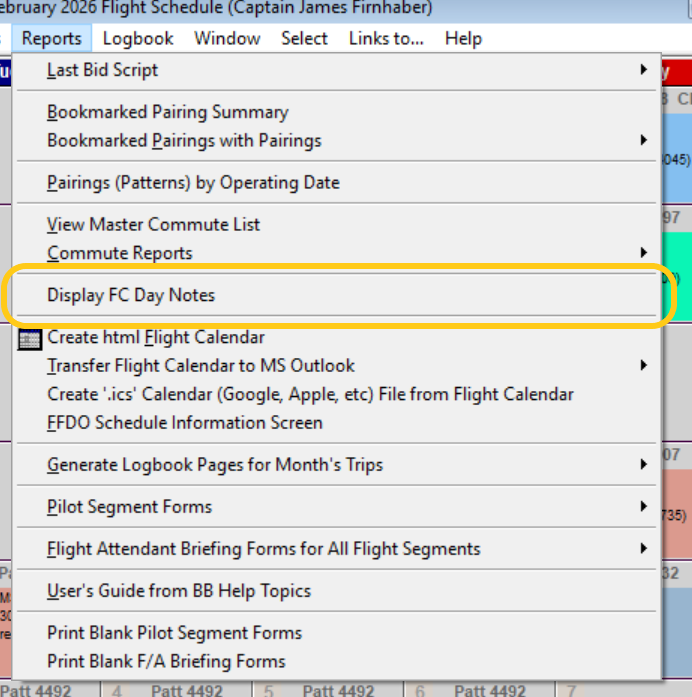
Rev 14: This update adds a really nice display and print capability for FC day notes. You access this form from the Reports menu as shown:
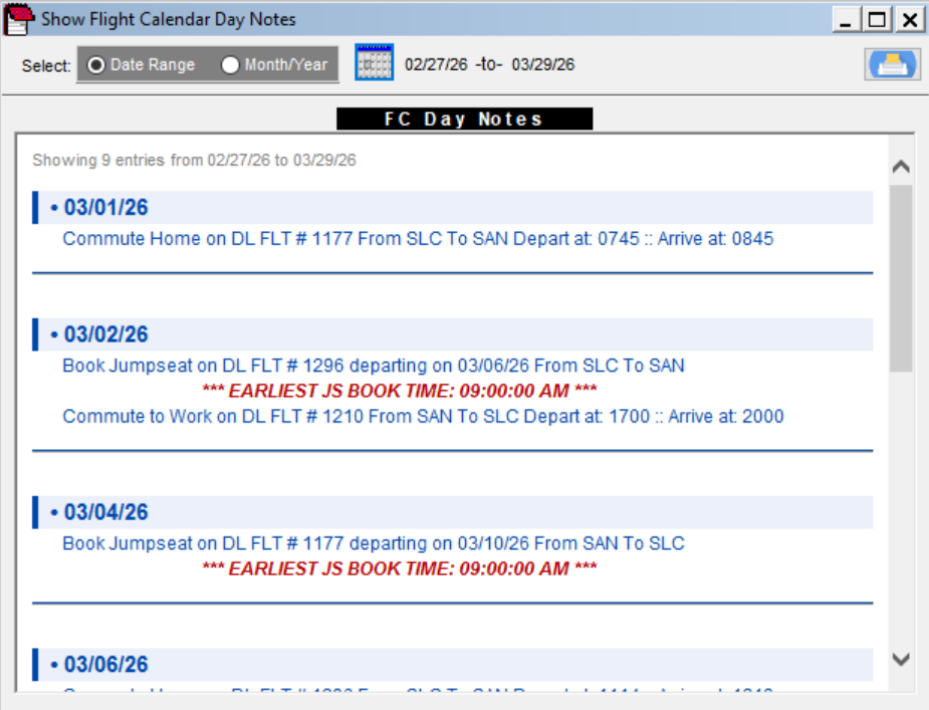
Once you select "Display FC Day Notes", the following Form opens:
This provides a nice way to select day notes for a range of dates or month/year and print them out in a beautiful format. This is particularly useful for commuters
who add day notes for commuter flights and earliest JS booking date/times for those flights from the MCFL.
I'd really like to add the ability to get flights automatically and book the jumpseat automatically but now that Delta is going to multi-factor authentication for sign on,
it makes it really difficult to automate everything.
Rev 12: Adds a new option in the profile screen for arming BC alerts for booking the jumpseat on commuter flights. This option is initially not checked so if you
want BC alerts, you have to go to the Profile screen and check it. It's the last option.
Adds the ability to create Windows alerts for booking the jumpseat. With Windows alerts, BC doesn't have to be open for you to get the alert. The Windows Alerts
are scheduled to occur ten minutes before the earliest JS booking date/time based upon local time at your "commute from" city timezone. To set these alerts you click
on the
button in the MCFL. This button is new in this release. After you set alerts, the Win Alert box will be checked in the MCFL.
This is read only.
Only Windows alerts not yet set will be set when you click this button, and once all alerts have been set this button is disabled.
Windows alerts will occur even if your computer is in sleep mode but you have to make the following changes.
There are also two Windows settings that must be enabled for wake to work — without these even a correctly configured task won't wake the PC:
1. Allow wake timers:
- Settings → System → Power & Sleep → Additional power settings
- Change plan settings → Change advanced power settings
- Sleep → Allow wake timers → set to Enabled
2. Fast Startup can block wakes — if you have issues:
- Settings → System → Power & Sleep → Additional power settings
- Choose what the power buttons do
- Turn off fast startup. If this button isn't enabled click
This will be incredibly useful in the future
if I can get automatic jumpseat booking to work because your computer will wake up to book the jumpseat even if unattended.
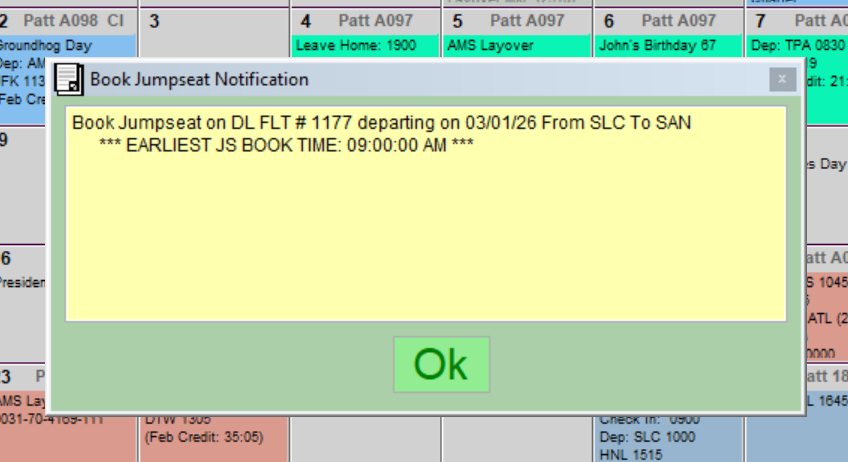
Below is an example of a Bid Central pop-up alert:
Rev 11: Eliminates the issue where when you select an adjacent commuter flight, the flight you select instantly scrolls out of sight. The flight display will now stay where it is after checking
the commuter flight you want to transfer to the MCFL.
Changes the commuter flight selection display to show the commuter flight date. If the commuter flight date doesn't match the pairing date (unless you select PD),
the commuter flight date will be shown in "red" indicating the flight is the previous day. If you select PD, the commute date up top will change to color "red".
Rev 10: I discovered another error condition that could occur if you added adjacent commuter flights to the MCFL, then added day notes to the FC,
then printed the FC with day notes, and subsequently selected more adjacent commuter flights from other FC trips.
This error could also occur for other sequences of commuter flight selection from FC trips. It's all now corrected in this update.
I apologize for all of these updates but I want you to have the best, most robust and bug-free software possible.
Rev 9: In testing I discovered that it was possible for BC to confuse "to-work" flights with "to-home" flights when adding commute flights by processing copied
flights from Travelnet. This update prevents that from occurring by forcing you to select either "to-work" or "to-home" in the commute window before
adding any additional flights. If this occurred, BC couldn't find adjacent flights either for "to work" or "to home" because those flights weren't properly labeled. I recommend that
you delete all DL commuter flights after installing this update, and then re-add them if BC wasn't finding adjacent flights for any trips in the FC.
Rev 8: Gives an indication in the transfer button that flights have been transferred from the commute flights selection screen to the MCFL, and prevents additional
transfers for that pairing. BC ensures that you transfer flights only once for each pairing unless you subsequently remove those flights from the MCFL.
MCFL = Master Commute Flight List, and it contains all commuter flight information.
Rev 7: Fixes an issue that could cause some MCFL flights to be transferred to FC day notes more than once when transferring other flights at a different time. I recommend you delete all
FC day notes and then transfer your MCFL flight and booking information once again. Make sure "Append" is checked when you do the transfer.
Also fixes an issue identifying the correct aircraft type when adding a flight-log skeleton (manual PFL trip add) from a pairing on the FC.
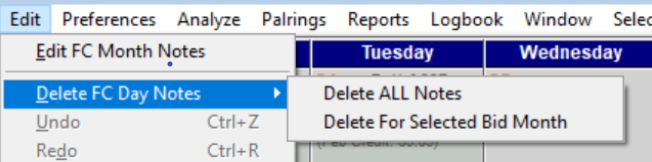
Rev 6: Adds the ability to delete FC day notes for either the entire FC or for the selected bid month. You do this from the Edit menu as shown.
The reason for this is if you add Jumpseat booking and Commuter Flight info from the Master Commute Flight List and later want to change it, you can delete
all of the Day notes for a given month and then re-add them from the MCFL form. When you delete the FC Day note information, the ability to add MCFL flights
is reset for that month so you can re-add that information from the MCFL. Be sure to keep "Append" checked in the MCFL form in case there are multiple entries for a given day.
You can view all the day notes for a given month by selecting the "Print Calendar with day notes" option.
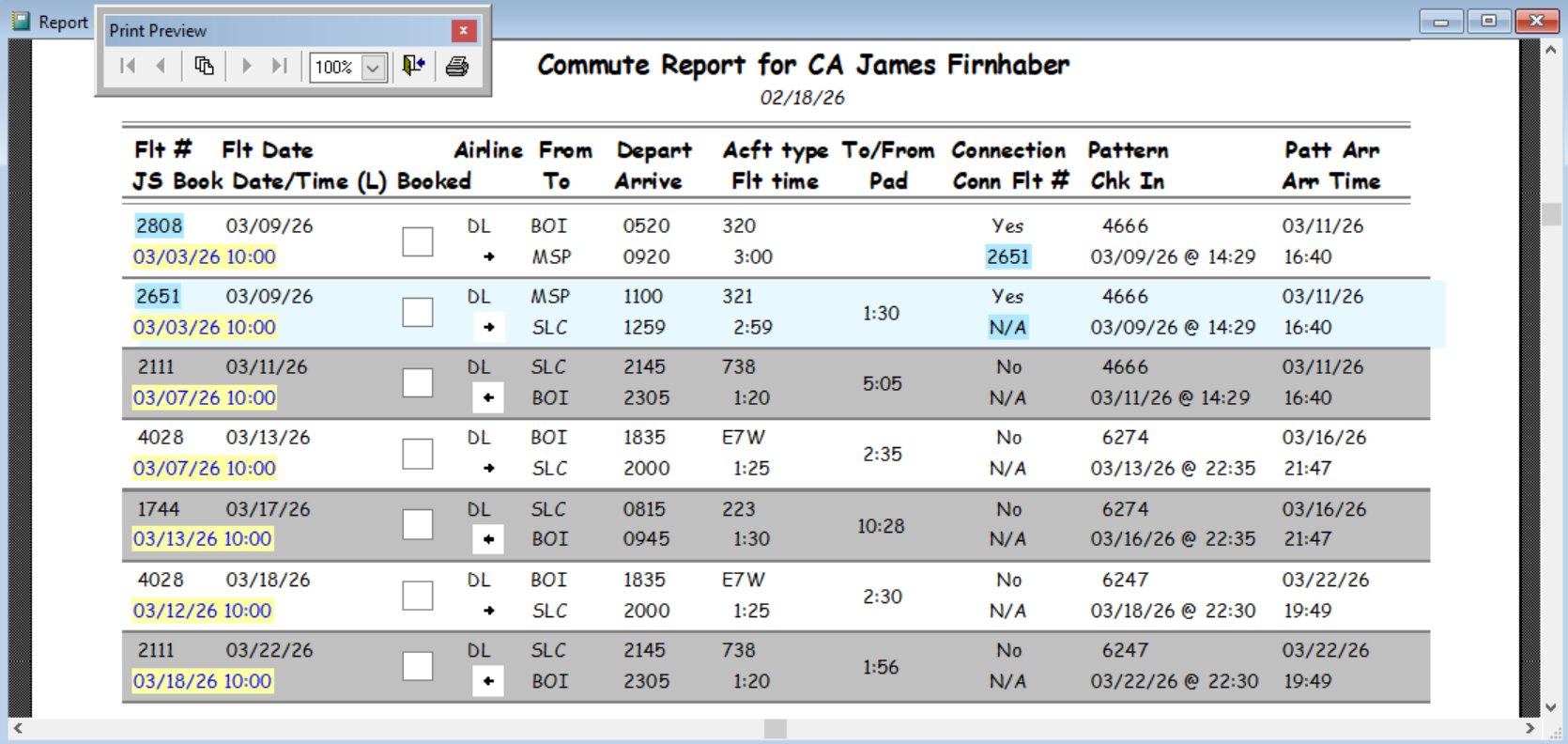
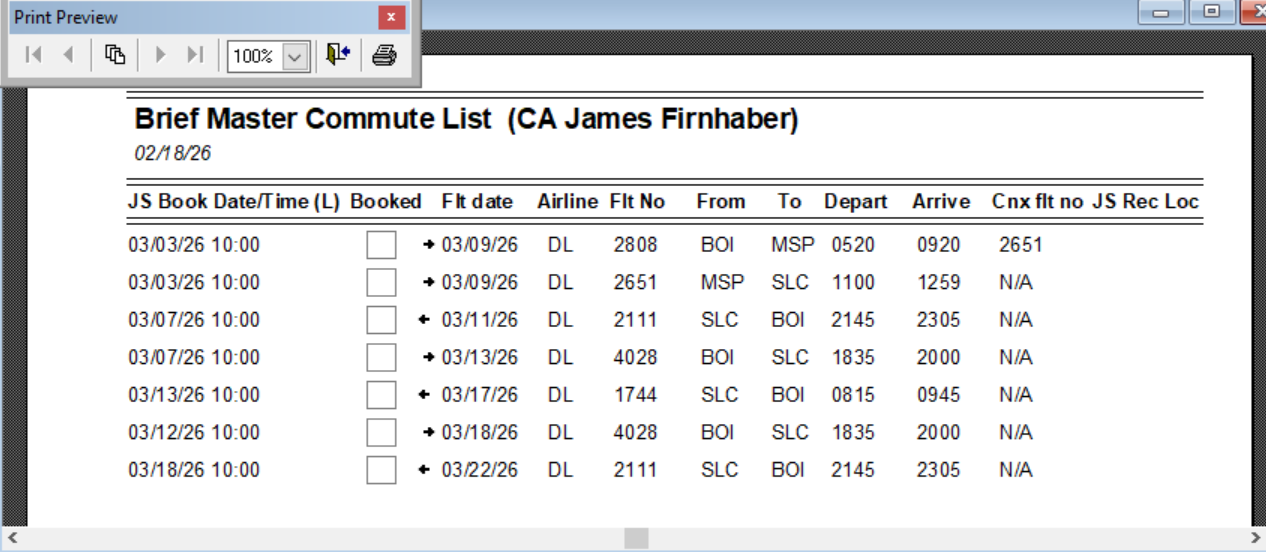
This update also includes improvements to both commute reports as shown below in updated screen shots below.
If anyone can record a video of booking the jumpseat and send it to me, I'm hoping to use that information to automate jumpseat booking at the earliest time using some AI tools
to get past the item selection screen. I also have a path to automate bid script entry, but I need a way to test.
Rev 5: I had the to-work and to-home earliest JS booking number of days wrong. BC will now show noon Atlanta time (converted to commute city time)
6 days prior to departure date and 4 days before "flight home" date as the earliest booking d/t. Information already in your Commute Flight list will be
updated automatically. Any Calendar Day notes previously added will not reflect the new information. To update, delete the day notes information and re-add.
Rev 4: Updates the full jumpseat flight list report because the js booking time was cut off and not displaying. It's no longer cut off.
Example of Brief Commute Report (below)
Rev 3:
- Improves the format of the automatic jumpseat booking notification which also appears in the appropriate calendar day notes.
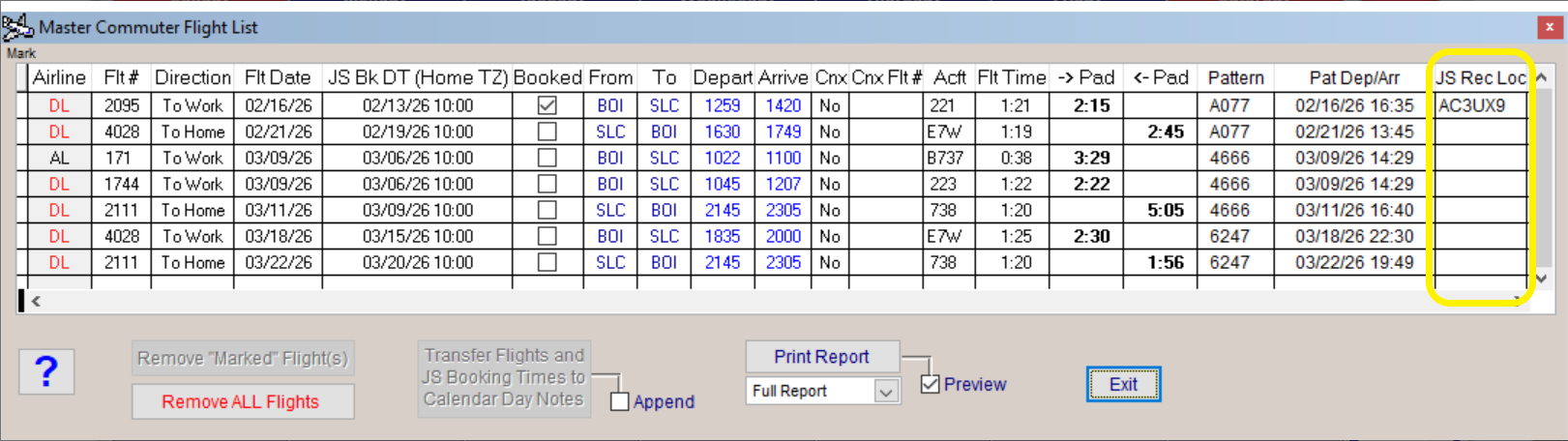
- The Master Commute Flight List now has a place to enter the JS Booking Record Locator once you book it.
- The Commute List Reports now include the record locator if you have entered one. Note: "Booked" must be checked for the rec loc to appear in the full report.
- Both Commute report options (Full and brief) are available from the "Reports" menu selection.
- Makes further improvements to the notification logic when a JS booking time is pending.
I've updated the full Rev 10.2 information and description so that it's easier to understand.
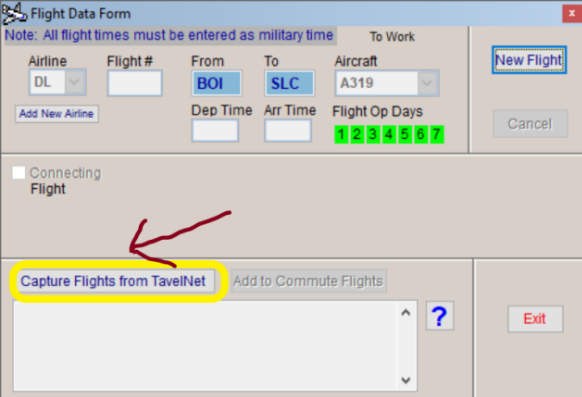
Rev 1: This is a significant update, the most important of which is a complete revamping of the commuter flight setup and connection to pairings on the Flight Calendar. Why is this
significant? You can now copy flights directly from Travelnet. Instead of adding flights manually one-by-one, click the button highlighted in yellow
as outlined in this screenshot.
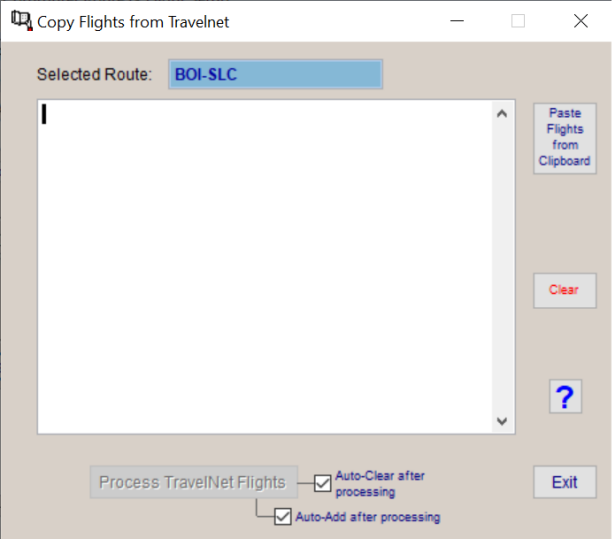
The following window will open.
Paste flights copied from Travelnet using the [Paste Flights from Clipboard] button as shown in the screen shot.
The below screenshot from TravelNet shows exactly what to highlight before copying all of the flights on a selected route.
Again, flights with connections through the city in your selected route are also supported. Just copy everything as long as the flights
match the "Selected Route" box on the "Copy Flights from Travelnet" form. After highlighting, use Ctrl-C to copy the Travelnet flights.
Then press [Paste Flights from Clipboard]) on the "Copy Flights from Tavelnet" form. The flights will then appear in the edit region of this window.
Do not worry about their appearance. Bid Central knows how to parse the information correctly as long as you copy everything shown.
Then click [Process TravelNet Flights] (which will automatically be enabled after you copy).
If "Auto-Add after processing" is checked, the flights will be added to that route in a single step.
If not checked, the parsed flights will appear in the small edit area (again read-only) in the "Flight Data" form. To add the flights, click the [Add to Commute Flights] button.
In a few days I will also post a link to a video demonstrating exactly how all of this works for commuters, but here are some more screen shots:
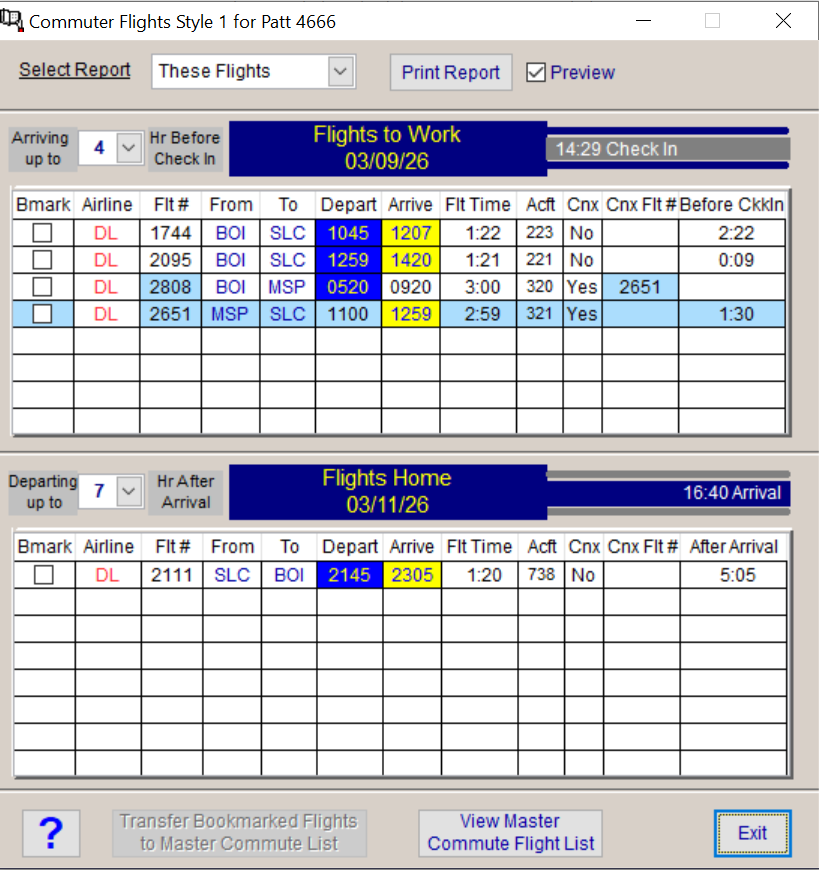
To select the best commuter flights for a trip, right-click over any day block in the trip on the FC and select the "Show Adjacent Commuter Flights" option.
The resulting commuter flights that connect with both ends of that specific trip will be displayed as shown in the screenshot below.
You can change the window for displayed flights shown using the "arriving up to" and "departing up to" options. PD and ND are for previous and next day commute options.
You then bookmark the commuter flights you want and transfer them to the active commuter flights list.
If it's a two leg commute, both flights are bookmarked automatically when you bookmark one of the two.
Master Commuter Flights List
Notice that the Master Commuter Flight List shows the earliest JS booking time based upon your "Home" timezone. In this case the home timezone is BOI. Once booked,
you can check "Booked" to indicate that you've booked that jumpseat, and also enter the record locator.
You can also transfer the flights to the FC day notes.
Jumpseat Notifications: BC will provide automatic notifications when it is close to the time to book the jumpseat. These notifications are based upon the timezone of the
city from which you commute. The notifications occur only if the flight is a Delta flight. There are two types of notifications:
1) If you transferred your jumpseat flights to Calendar Day notes, when you open BC and if the date matches the jumpseat booking date for flight(s) you added and the
booking time is either before and up to one hour after the earliest booking time, then you will get a JS book notification message for that flight when you first open Bid Central.
2) If BC is open within two hours of the earliest date/time to book a jumpseat in the Master Commute List (again local time for "home" city), every 30 minutes before the JS booking
time, you will get a "book jumpseat" notification with details about the flight(s) to book at that time.
Other Updates
- Fixes [Summary of Scheds] issues in the Ramjet. Will now correctly display summary for manually created schedules. It will also put any Fixed Trips in the generated schedules summary.
- Fixes problems where the cursor wouldn't be available in some edit fields and would be ON when it shouldn't be.
- Updates the Calendar Day Notes edit form with the ability to copy the contents with one click..
- Fixes some displayed pairings problems when displaying pairings in the Ramjet. The print option for that display is now disabled since it wasn't working..
- Adds more robust error trapping to prevent abnormal shutdowns.
- Updates some cosmetic issues and includes other fixes I can't recall offhand.
Best I can tell, all BC features are now updated and working properly. If you run into any error conditions that aren't trapped, please let me know so I can fix.
Bid Central Revision 54 Information
Fixes error conditions that were occurring (that could crash BC) when processing actual ICrew trips to add to the BC trips list (and on to the FC). This feature now works
as it should, and should any error occur you'll get a BC error message and BC won't crash. This works even with the "auto-add" check box checked.
Fixes a similar issue when creating a made-up pairing from an existing pairing. This feature now works as it should and has the same robust error trapping just in case.
Bid Central Revision 53 Information
You can now add pairing skeletons in the Pilot Flight Log - Manual Pairings Entry Form directly from Flight Calendar trips.
Press the [Add Pairing from Flight Calendar] button and a window will open. It will cycle through each pairing on the FC and ask which one you want to add.
Once you click "yes" to add the pairing, BC will capture the pairing information and the pairing skeleton will appear in the grid. You then need only add actual
times and aircraft numbers to complete the information.
The other pilot name is captured if you previously added other pilot names to your FC trips. In the future I'll create a report in the PFL showing you the number of times you've
flown with each person if that feature is desired, or I'll just add it to the statistics. The other pilot name is also now automatically captured when you process already flown ICrew pairings.
Bid Central Revision 52 Information
This is a significant update: I've basically re-engineered the guts of the Selected Pairings Display Screen. I did some testing today and discovered some issues
that I hadn't previously noticed. The re-engineered version improves virtually everything about this screen. I've tested for virtually every combination of selected
options and combinations. The first thing you will notice is a number box between the arrows that shows the ordinal number of the pairing selected from the list. The
operating logic is now completely consistent. The Selected Pairings Report is now also improved. Let me know what you think.
Bid Central Revision 51 Information
- Fixes a problem in the Layover Analysis screen where trip operating days weren't being unselected when the layover day didn't match and the trip operated on multiple days
- Updates the hotels in the hotel list management form when processing pairings for the layover cities within those pairings. The hotel phone is no longer shown unless you enter it manually.
- Fixes an error condition that could occur ("Could not access the selected table" message) when changing bid months on the flight calendar.
Bid Central Revision 50 Information
Fixes an error condition that was occurring when printing important dates in the Date Calculator
Rev 49 Fixes some minor bugs and errors that were occurring in the updated Date Calc. It's possible that you will have to re-enter your important dates.
Bid Central Revision 48 Information
Please be sure to read the Rev 47 info on new drag-and-drop procedure on the Ramjet.
This update adds a new menu item when you right-click over the trip information block on any of the calendars- FC, Ramjet, and Warpdrive. The Item
is "Show time (interval) between this trip and the next trip". When you select this option a small window will open showing the time between duty end on
the trip you click on, and duty begin on the next trip that follows on the calendar. If there is no trip after, nothing will happen.
Bid Central Revision 47 Information
IMPORTANT: This update changes how you drag and drop trips in the Ramjet. There was an issue where when you click on a trip in the list it wouldn't actually be selected because
BC was mistaking this click for drag operation. Now to drag and drop a trip, you have to press "Shift-Click" while holding to drag the trip onto the calendar. With this change, when
you simply click on a pairing number in the list, that pairing will be properly selected and the op days updated on the SG Calendar.
Fixes a couple of issues in the Warpdrive:
1) Fixes an error that occurred when displaying bookmarked pairings from within the Warpdrive.
2) Fixes an issue that could cause multiple information messages to appear after starting the Warpdrive when days off were previously selected in the Ramjet or
Ramjet Warpdrive. You'll now see this message only once on startup if days off were already selected.
I highly recommend that you experiment with the Warpdrive as it generates extremely compact and powerful bidscripts that encompass the schedules you want to bid.
Since BC can no longer upload Bidscripts automatically, this makes the whole bidding process much faster and easier.
If you are wondering why BC can't upload bids automatically, the application that I used to implement this is no longer supported and NavBlue was significantly changed
thus essentially breaking the bid upload programming. That was a sad day for me because it took a tremendous effort to get working.
Since I no longer have access to NavBlue (I'm retired) I don't have the ability to program using other options that might work. That is why
I recommend trying the Warpdrive, as the bids it creates are much shorter and more concise while remaining encompassing.
Bid Central Revision 46 Information
Rev 46: Improves date selection when selecting a filtered date range in the PFL (last selection option in drop down)
Rev 45: Keeps the checkbox setting you select (after leaving the screen) in the Manual Add Pairings Form for discarding pairings after add.
Rev 44: Ensures that when you add pairings to the PFL, the flight segments are ordered by date/segment number. This ordering is enforced no
matter what date sequence you add pairings to the PFL.
Rev 43: If you right-click on the date field in the first segment of a manually added pairing, the date select calendar will pop up to select a date
Rev 42: Automatically figures out the date for the next flight segment based upon the ground time of the previous flight segment
when adding a manual pairing in the PFL
Rev 41 fixes a bug when adding manual pairings to the PFL
1) Improves the Layover Analysis Screen. The layover dates selected will now be fully reflected in the selected pairing op dates.
Previously only the first date (of the checked dates) was being selected. There is still an issue with the layover date if the
Pairing departs as a redeye and arrives the following day (e.g. JFK-EZE). Since the layover day is the first day of the trip
the layover analysis considers the layover to be on that day instead of the actual arrival day (e.g. Fri instead of Sat).
2) Updates actual (From ICrew) flown pairing processing in the Pilot Flight Log and now allows editing of the following fields:
Date, Pairing Credit, Equip (Equip is a new field that you have to enter yourself... e.g. 320, 321, 319)
Properly captures the pairing credit which was an issue due to a format change I didn't know about.
Updates the date range for filters.
Adds new stats for layovers and equipment. You must enter the equipment manually on each flight segment.
3) Adds a new button in the Pilot Flight Log that when clicked opens a window which allows you to enter pairings manually.
Enter that Pairing number box at the top of the screen. When you leave that box, all pairing numbers will be copied to empty segments
Right-clicking on the following fields will copy the field entry just above it: Date, Flt #, Acft #, Equip
You can scroll the mouse wheel either up or down to increase or decrease the date in the date field.
Shift-Click (left click) will also increase the date by one day with each click.
Layovers are automatically detected based upon the ground time, but you can change as needed.
Right-clicking the layover field copies the arrival city into that field. This occurs automatically if a layover is detected.
You must enter the pairing credit before BC will allow you to transfer the new pairing into the PFL. If it's a hardfly pairing
you can simply press the [Calc] button to calculate the total credit automatically.
Bid Central Revision 38 Information
1) Fixes a pairing processing error that could materialize when processing pairings.
2) Fixes an missing files problem in the date-time calculator
Bid Central Revision 37 Information
Fixes an error condition that occurs when selecting year 2026.
Adds Bid-month dates for 2026.
Includes a new and improved Date-Time Calculator
Bid Central Revision 36 Information
Fixes a problem with the aphorisms display screen and adding aphorisms to the f/a briefing form.